
What's new in One Big Green: edition June-July 2026

This month’s update is all about making everyday work a little smoother. Whether you’re out servicing plants, planning schedules in the Back office, or managing your team, we’ve removed quite a few little annoyances and added several features you’ve been asking for.
Some are big, some are small, but together they should save your team a surprising amount of time.
Let’s dive in. 👇
Walk onto every site knowing exactly what’s going on
Ever arrived at a site you’ve never visited before and wondered, “Anything I should know before I start?”
Now there is.
We’ve added a brand-new All Site Notes tab to the mobile app. It brings together every note ever added to the service site, so even if you’re covering for a colleague or visiting for the very first time, you can quickly catch up on customer preferences, display quirks, recurring problems, or anything else worth knowing.
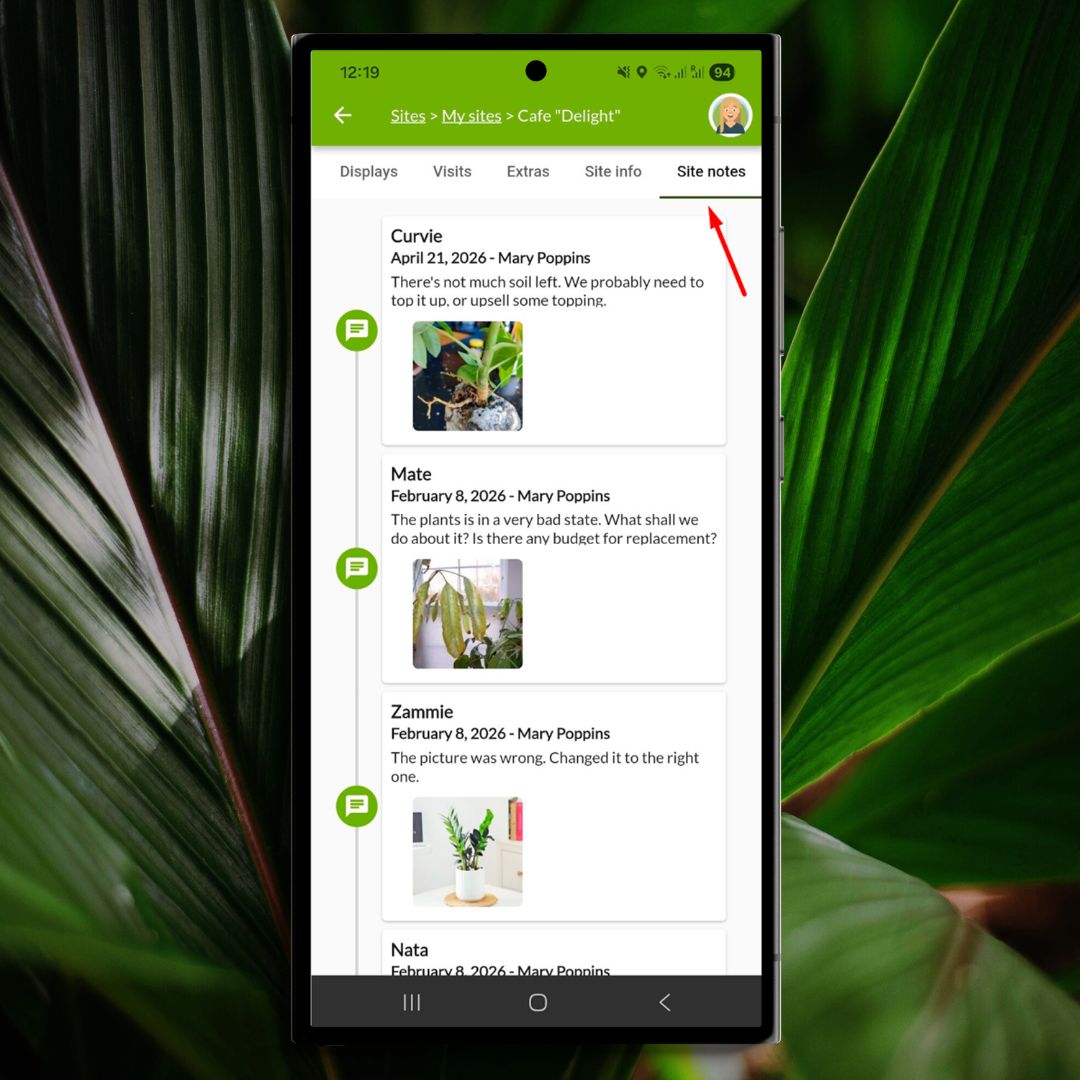
We’ve also expanded what you see when starting a service visit or delivery. Previously, you only saw issues, assignments and replacements for the specific service you were about to perform. Now you’ll see everything that’s waiting across the entire service site, making it much less likely that something important slips through the cracks.
And one more thing that should make recurring work much clearer.
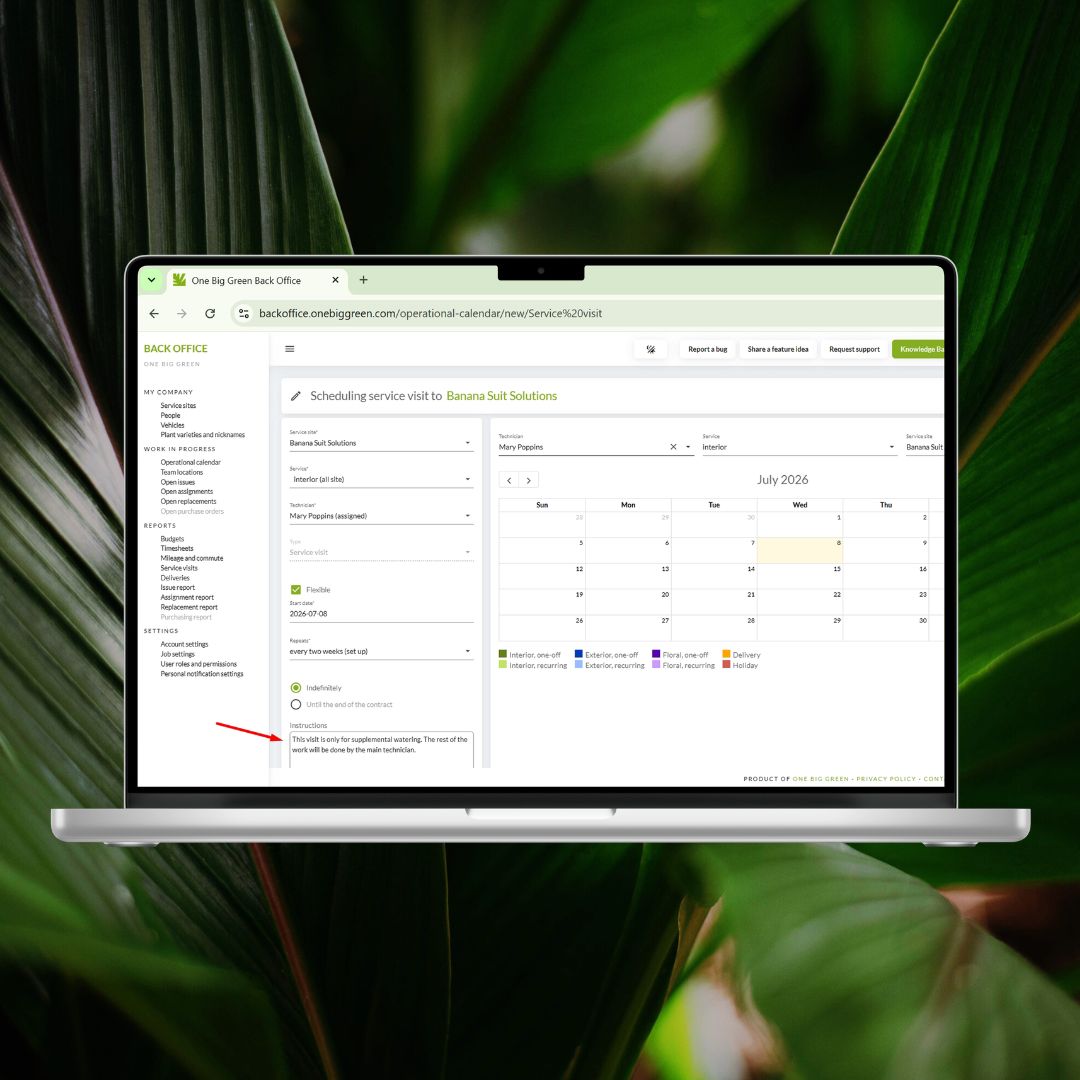
When scheduling service visits in the Back office, the admin team can now add visit-specific instructions. This is especially useful for recurring visits where the scope of work changes from time to time. For example, you can specify that today’s visit is only for supplemental watering, while fertilizing and pruning will be handled by the primary technician.
Those instructions are shown automatically when the assigned technician starts the job, so everyone begins with the same expectations.
Why it matters:
Give every technician the context they need before they start, helping your team deliver more consistent service and avoid missed details.
Team changes? We’ve got you covered.
People leave. New people join. Someone goes on vacation. Another technician takes over an account.
Those transitions happen in every company, and we’ve added several improvements to make them much less stressful.
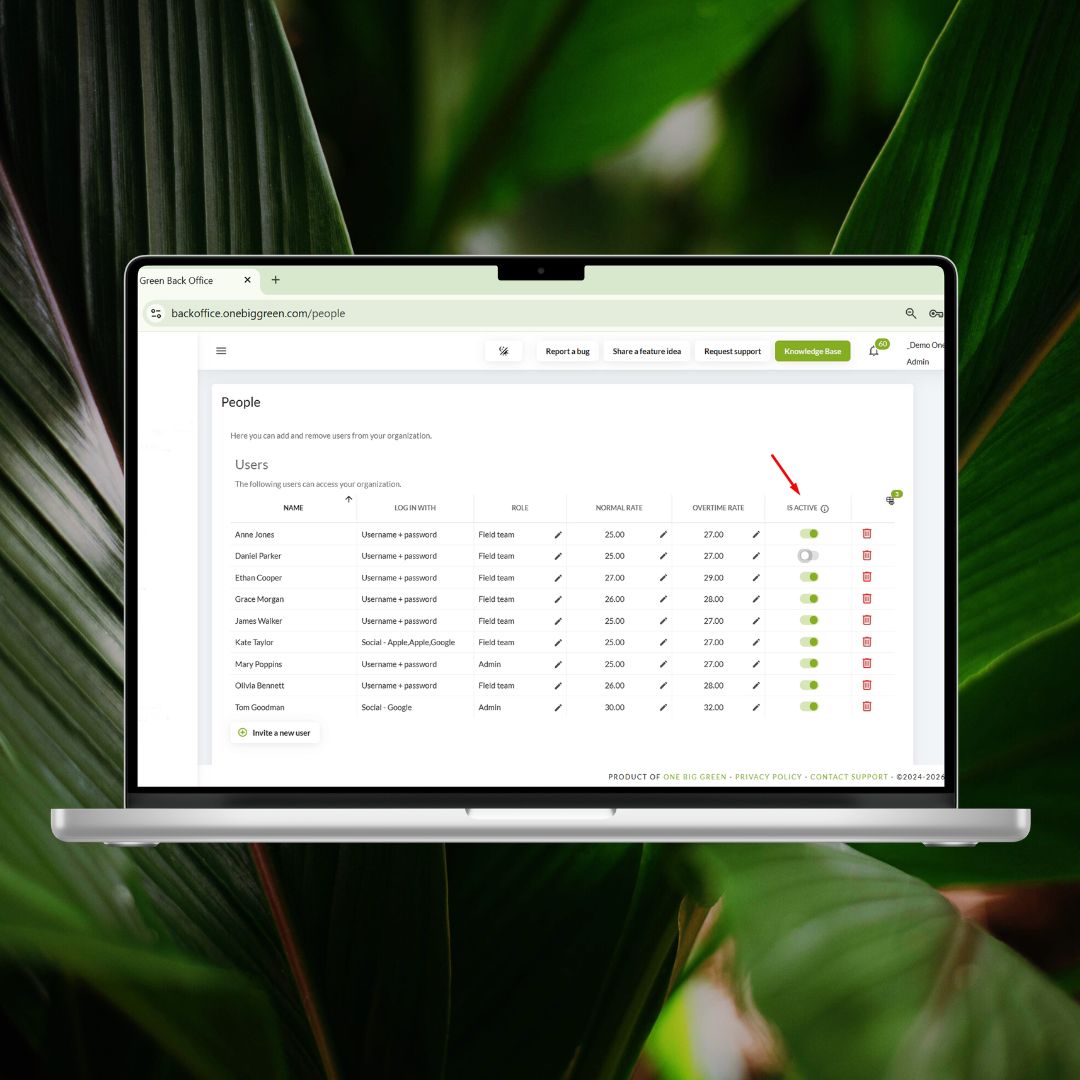
First, you can now deactivate users instead of deleting them immediately. Their access to One Big Green is removed right away, but they remain connected to historical records, payroll, timesheets and assigned items until you’re ready to remove them completely.
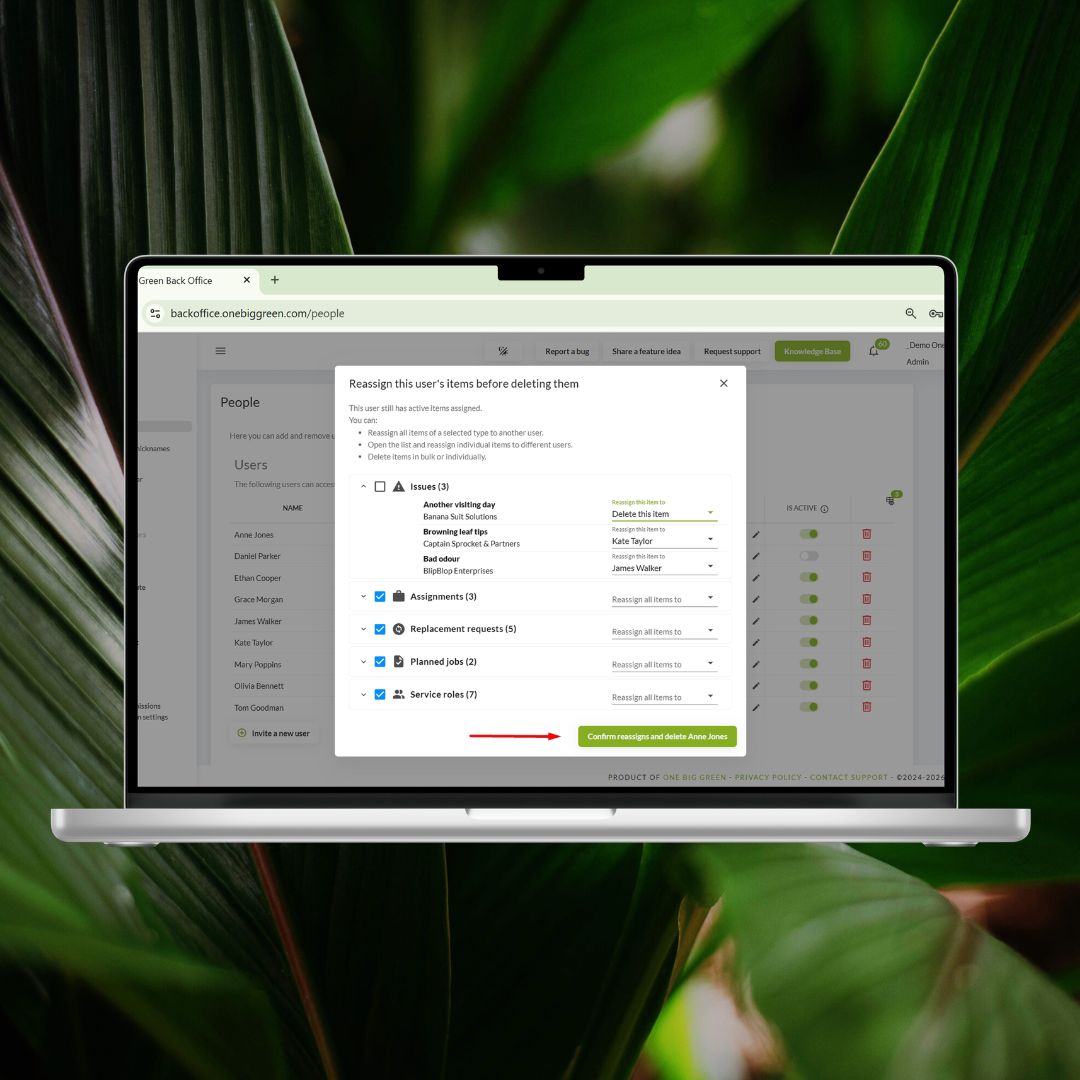
And when that time comes, deleting a user is now much smarter. Instead of hunting through different parts of the system, you’ll see a complete overview of everything assigned to that person, including service visits, deliveries, issues, assignments, replacements, service site roles and even vehicles. You can reassign whole groups of items, move individual records to different people, or delete them where appropriate, all from one screen.
We’ve also solved another long-standing request.
Until now, administrators couldn’t be downgraded to another role. That restriction existed to prevent someone from quietly removing all other admins and taking over the account.
We’ve now found a safer solution. Admin role changes are possible, but only after the affected administrator confirms the change via email.
Why it matters:
Keep work flowing smoothly through staff changes without losing assignments, historical records, or valuable time.
Replacement management keeps getting faster
We know replacements are one of the busiest workflows in One Big Green, so we’ve polished several parts of the process.
You can now create new replacements directly from the Replacements section in the mobile app, without jumping through additional screens.
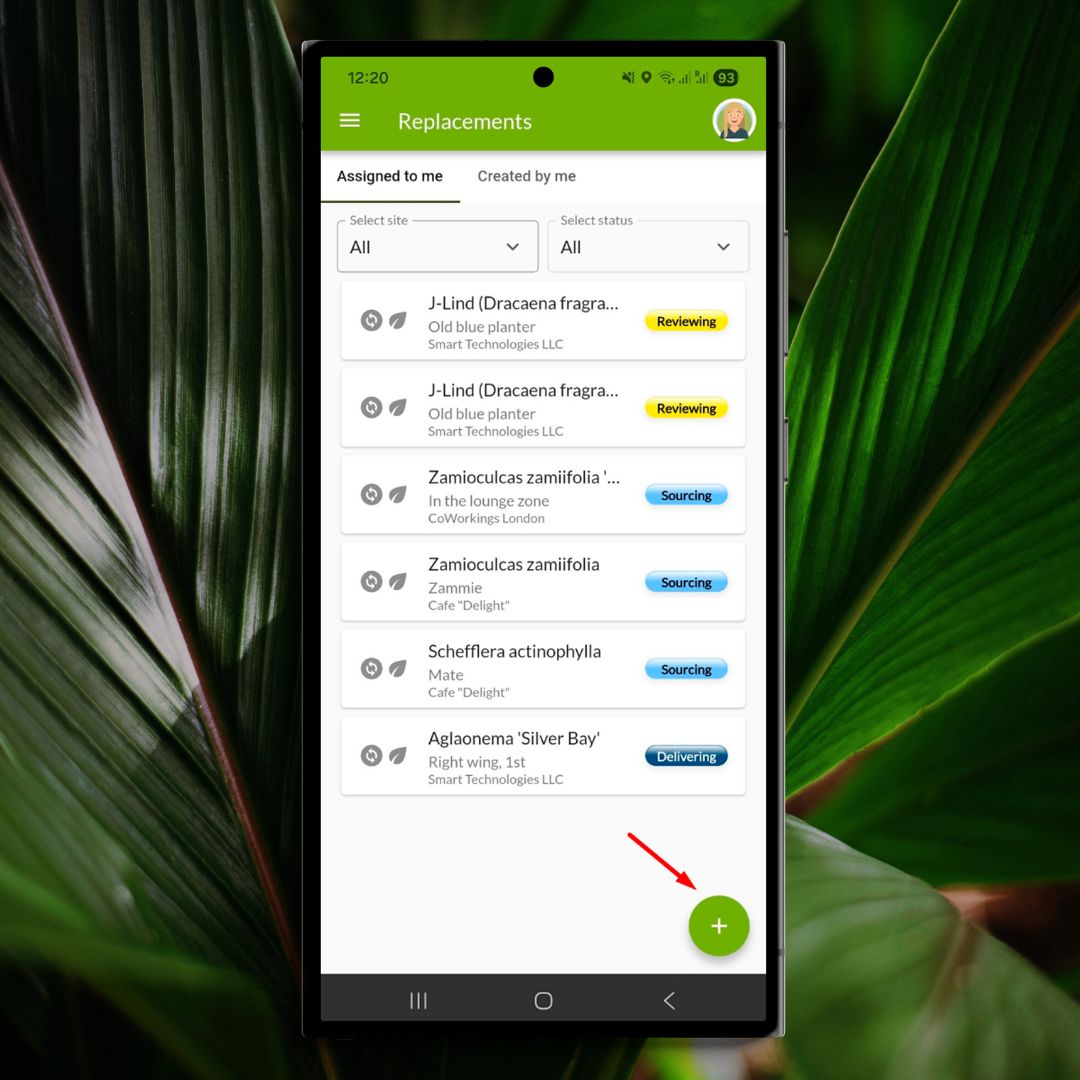
If a display contains just one plant, One Big Green now automatically selects it when creating the replacement. One less click, every single time.
We’ve also reorganized replacement statuses into a workflow that mirrors how replacements actually happen:
Reviewing → Sourcing → Delivering → Installing → Complete
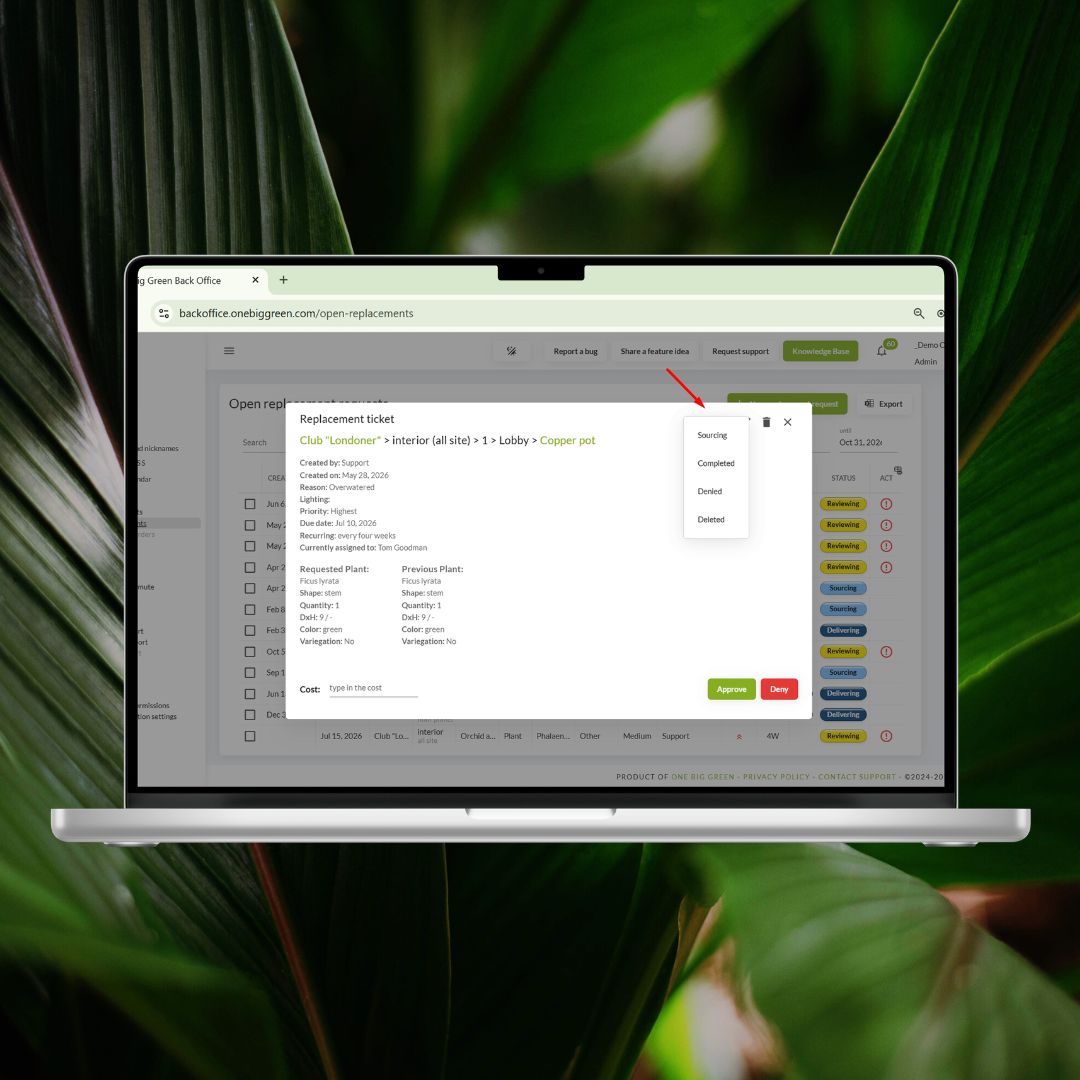
It’s a small detail, but choosing the correct status now feels much more natural, especially for teams that manage large numbers of replacements every week.
Why it matters:
Fewer clicks and a more intuitive workflow mean faster replacement management and more time spent serving customers.
Better visibility, fewer surprises
Sometimes a quick visual reminder is all you need.
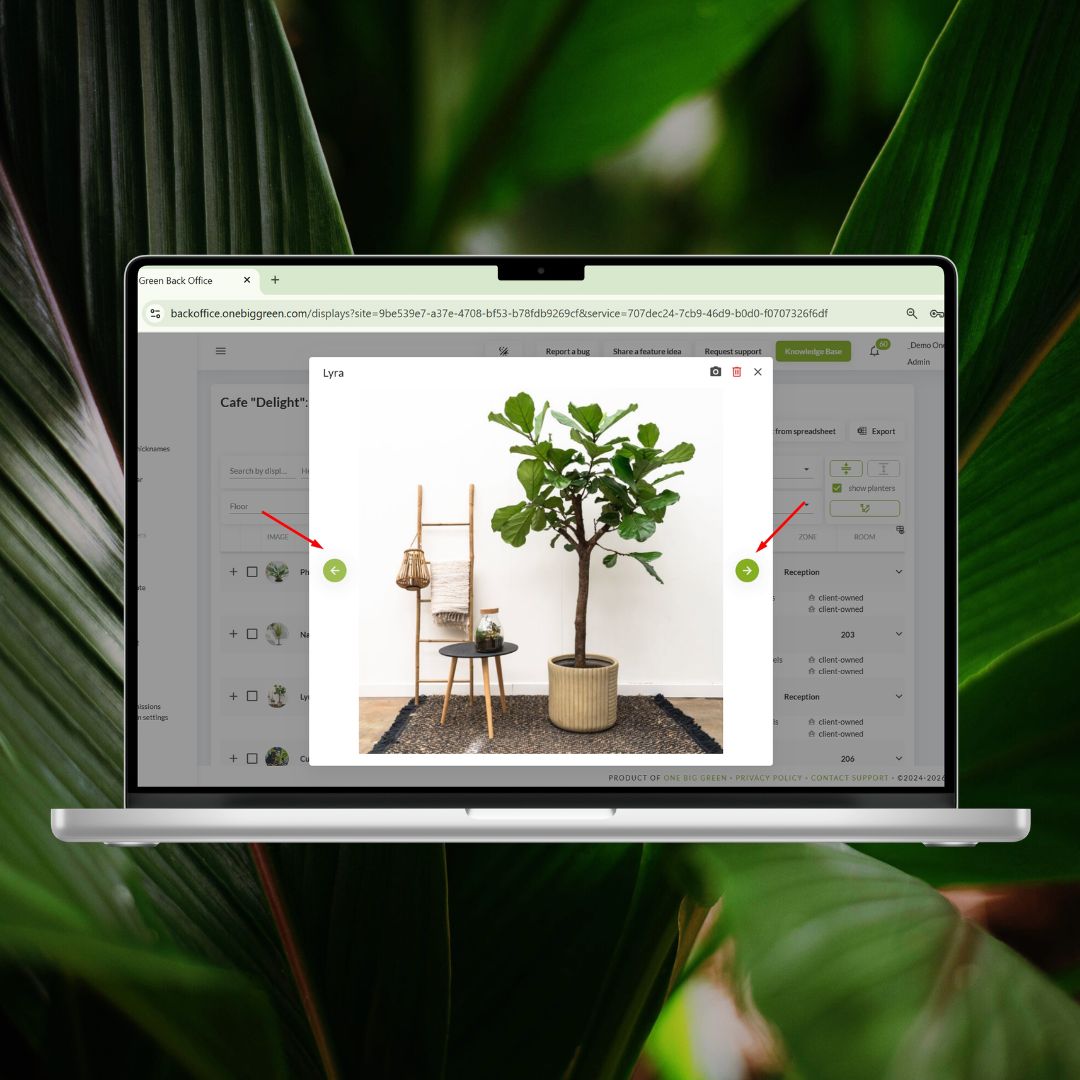
When browsing a site’s field inventory in the Back office, you can now flip through all display photos for the location. It’s a simple way to refresh your memory before walking through a large account or to quickly find the display you’re looking for.
We’ve also added support for HEIC image files throughout One Big Green. If your team uses iPhones, photos can now be uploaded directly to issues, assignments and replacements from both the mobile app and the Back office, with no file conversion needed.
Why it matters:
The right information at the right time helps technicians work more confidently, reduce mistakes, and complete visits more efficiently.
The Back office is finally becoming Your Back office
This has probably been one of the most requested improvements we’ve ever received.
From now on, you can resize columns and hide the ones you don’t need across tables throughout the Back office.
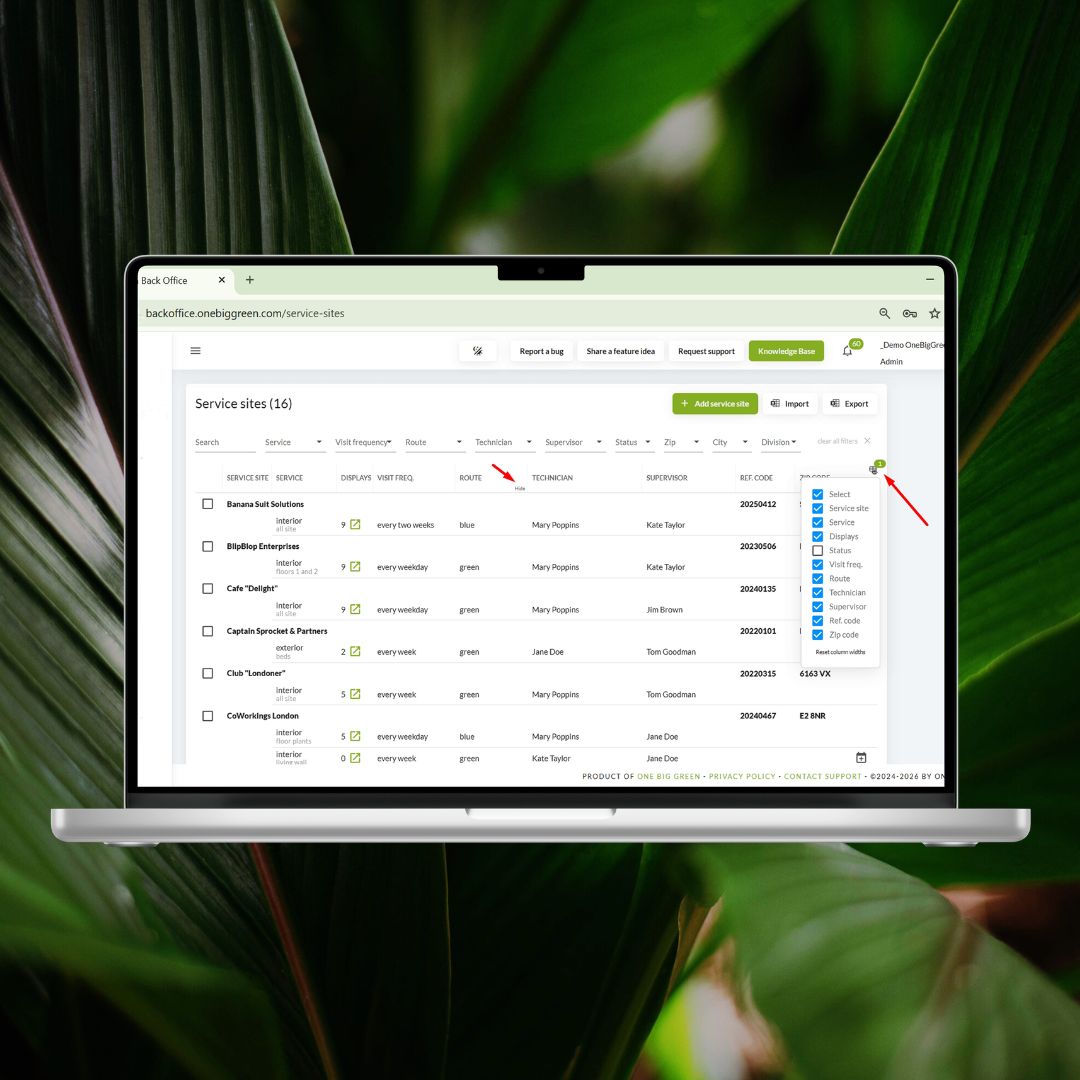
Everyone works a little differently. Some people want wide customer names. Others care more about statuses or dates. Some work on large monitors, while others spend their day on a laptop.
Now your workspace can adapt to you.
Need a wider Description column? Drag it wider.
Don’t need a Due date? Hide it.
Working on a smaller screen? Remove the clutter and focus on what matters.
It’s one of those features that doesn’t sound flashy, but once you’ve used it for a day, you’ll wonder how you managed without it.
Why it matters:
Great operational software for interiorscapers should adapt to your workflow, not the other way around. Customize your workspace to focus on what matters most.
One small improvement you’ll appreciate every payday
Here’s one for the payroll heroes.
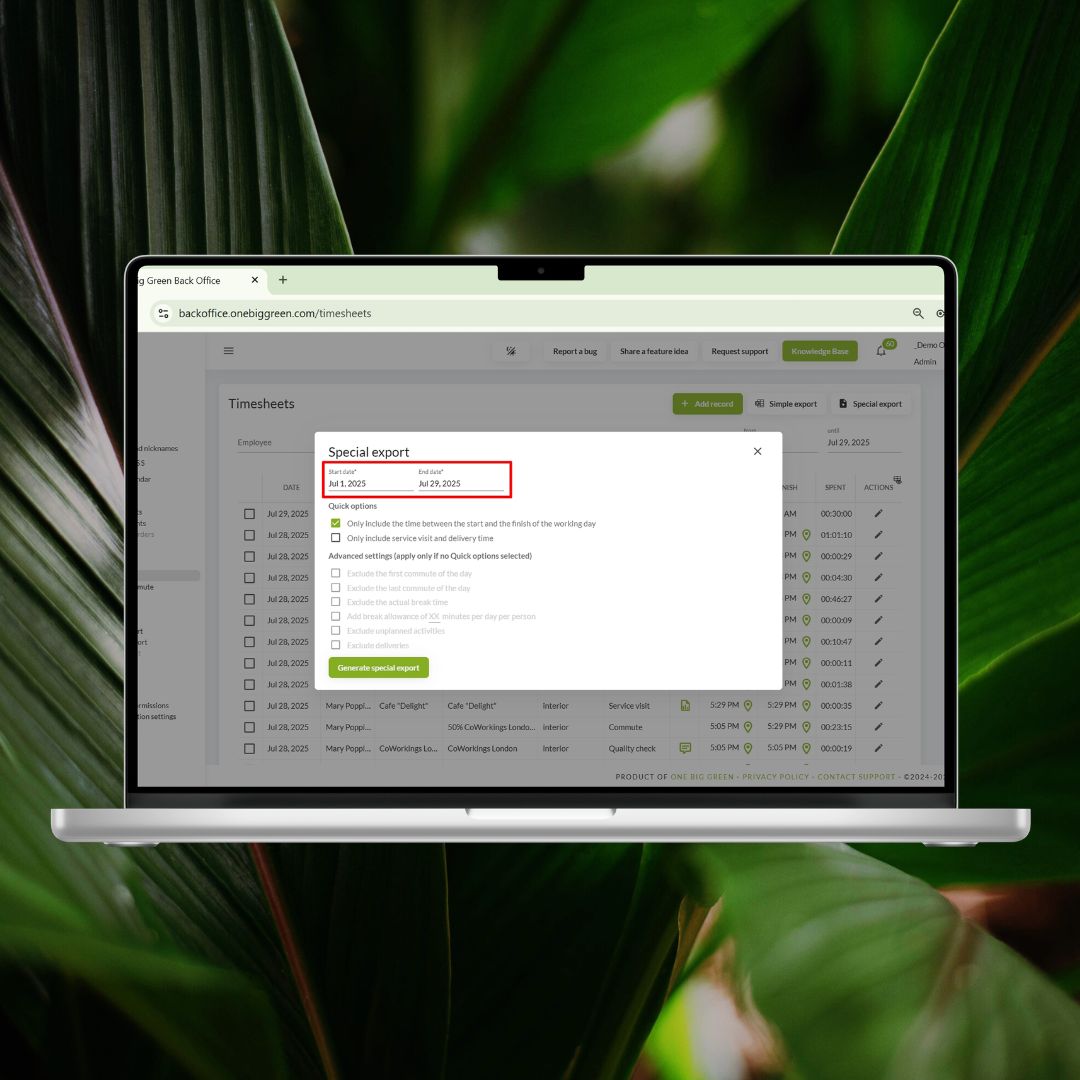
The date ranges used in the standard Timesheet export and the Special export are now synchronized automatically. Enter the dates once, and both exports stay in sync, saving a few repetitive clicks every payroll cycle.
Why it matters:
Small automation saves time. Fewer repetitive clicks mean faster payroll processing and less room for error.
Thanks for being part of One Big Green
As always, thank you for all the ideas, feedback, and feature requests. Nearly everything in this release started as a conversation with one of our customers.
Please keep them coming. They help us make One Big Green better for everyone.


