What's new in One Big Green: edition November 2025

We’ve been listening closely to your feedback about how work gets communicated and followed up on across teams, sites, and customer interactions. One of the most common themes has been that it’s easy for things to get lost when they’re mentioned in passing, texted between colleagues, or scribbled in a notebook.
This update is designed to solve exactly that.
With Issues and Assignments, your team can now capture what needs attention and clearly delegate what needs to happen next. The goal is simple: fewer loose ends, more clarity, and less time spent chasing information. Everyone stays in sync, and every site gets the care and attention it deserves.
Let's check it all out together: 👇
Introducing Issues and Assignments
We’re excited to introduce two new tools that help your team stay aligned and take action faster: Issues and Assignments. They may look similar at first, but they play very different roles. Understanding the difference will make your workflows smoother and your communication clearer.
What are Issues in One Big Green?
Issues are used to log something that needs attention, often involving support from the office team or coordination with the customer.
Think: a sudden change in lighting or temperature conditions, a broken irrigation system, a customer concern, or anything that needs follow-up.
Issues help you capture what’s going wrong and react in a timely way so nothing slips through the cracks.
How Issues are used:
Field teams can create Issues directly while on-site, supported with photos or notes, so your back office and supervisors immediately see what is happening and where.
This creates a shared and visible record, without extra messaging, side conversations, or memory juggling.
Issues ensure the right people are notified, and the follow-up is tracked and completed.

Take a look at these two new Knowledge Base videos.
They’ll walk you through how to work with Issues. 👇
What are Assignments in One Big Green?
Assignments are specific tasks or actions that need to be completed by someone.
Examples include performing a pest-prevention round, updating display photos or health scores, preparing an upsell quote, purchasing a specific fertilizer, or following up with a building manager.
How Assignments are used:
Assignments create clear ownership. You choose who is responsible, and you can track the progress through to completion.
No more “I thought someone else was taking care of that.”
Everyone knows what they’re responsible for, and nothing gets forgotten.

Want to learn how to use Issues more effectively?
These two new Knowledge Base videos have you covered. 👇
Creating Issues and Assignments
You can create both Issues and Assignments in the Back Office and in the Mobile App.
When creating them, you can attach photos or files (for example, a floor plan or site instructions) to provide context.
In the Mobile App:
During a service visit or delivery: Extras tab → + → Create Issue / Create Assignment
Outside of a visit or delivery: Issues / Assignments (in the main menu) → + → Create Issue / Create Assignment

If created during a service visit or delivery, the item will appear both in the service/delivery report and in the Open Issues / Open Assignments in the Back Office.
If created outside a visit or delivery or if created via Back office, new Issues and Assignments will appear in Open Issues / Open Assignments only.
Keeping Track in Mobile App
In the app’s Issues and Assignments sections, you’ll now see two tabs:
Assigned to me: what you personally need to resolve or complete
Created by me: everything you started and are tracking the progress of
You can also assign Issues or Assignments to yourself if needed.
Before each service visit/delivery, the Start tab will show all open Issues and Assignments (also Replacements) for that site (no matter who they’re assigned to).
Issues are marked with an exclamation icon
Assignments are marked with a briefcase icon
Replacements are marked with two circular arrows
If you want to log the completion of something while on-site, head to the Extras tab, open the item, add your notes, and click Resolve or Complete.
At the end of the visit, use the Finish tab to review any new or completed Issues, Assignments, and Replacements before submitting the report. Taking a brief moment here prevents confusion later for everyone involved.
Statuses and Monitoring
Issues can have the following statuses: Open, In progress, Resolved, Canceled
Assignments can have these statuses: Open, In progress, Completed, Canceled

Open and In progress items show in Open Issues / Open Assignments in the Back Office (sorted by newest created first)
Resolved / Completed / Canceled items appear in Issue Report / Assignment Report (also sorted by newest completed first)
You can also view open Issues, Assignments, and Replacements directly on the Service Site Card.
Sneak preview: a small redesign of the service site card is coming next month, so the most recently closed items will be visible there, too.
Small Update on Replacements
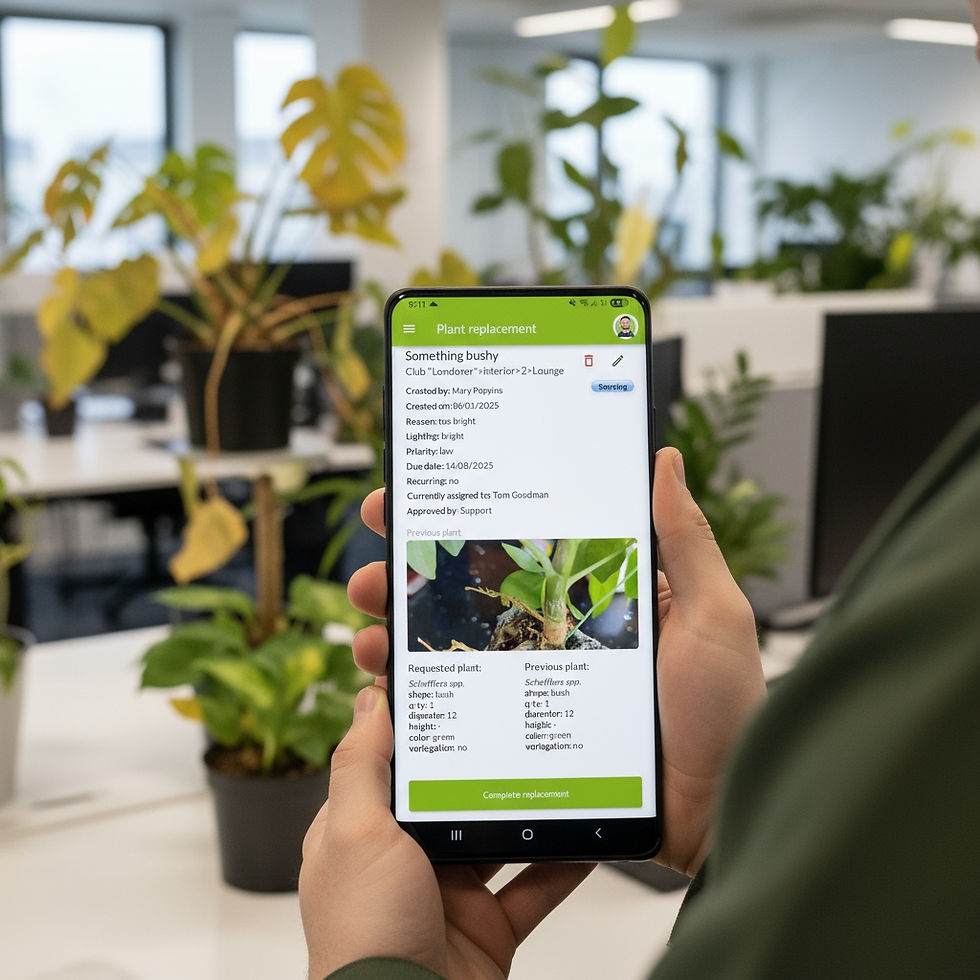
Based on your feedback, photos are now required when requesting a replacement. This should save supervisors and office teams a lot of time when reviewing and approving replacements.
For serial replacement tickets (and this now also applies to the serial Assignments), in Open replacements/Open Assignments, we are now showing only the closest ticket in the series.
Other Improvements Under the Hood
Fixed the occasional authentication issue that appeared after keeping Back Office open for long periods (we see you, power users!).
Improved performance when importing large datasets such as service sites and displays.
Reduced loading times when handling long lists (timesheets, open and closed issues, assignments, replacements, completed visits, and more).
These improvements are part of our ongoing effort to make One Big Green feel like a natural extension of how your team already communicates and works - just with much less friction and a lot more visibility.
As always, your feedback guides what we build.
If you have suggestions, ideas, or something in your workflow that feels harder than it should be, please share.
We’re here, we’re listening, and we genuinely enjoy building this together with you.
Thank you for growing with us. 🌱