
What's new in One Big Green: edition September 2026

One Big Green keeps growing, and a big part of that growth comes from something we take very seriously: listening to the people who use it every day.
We hear your questions, your frustrations, your “wouldn’t it be great if...” ideas, and sometimes even the wonderfully specific requests that make us realize there’s a much bigger problem hiding underneath them.
This month is a great example of that.
Some of the features below have been on our roadmap for a while, while others started with a conversation with a customer and grew from there. Our job is not just to build more features, but to understand how plant service companies actually work and make OBG fit that reality better and better.
So, here’s what we’ve been working on. Quite a lot, actually.
Quality inspections are here!
This has probably been one of the most requested new modules of the last several months.
With Quality inspections, you can now organize and digitalize your entire service quality assurance process and connect it seamlessly with the scheduling, inventory, reporting, and issue management infrastructure you already use in OBG.
Setting up your inspection routines
Start in the Back office, where you’ll find the new Quality inspection planner section with two tabs: Planner and Criteria.
First, set up your Criteria. You can create themed blocks such as Beauty, Health, or Customer service, and then add individual criteria within each block.
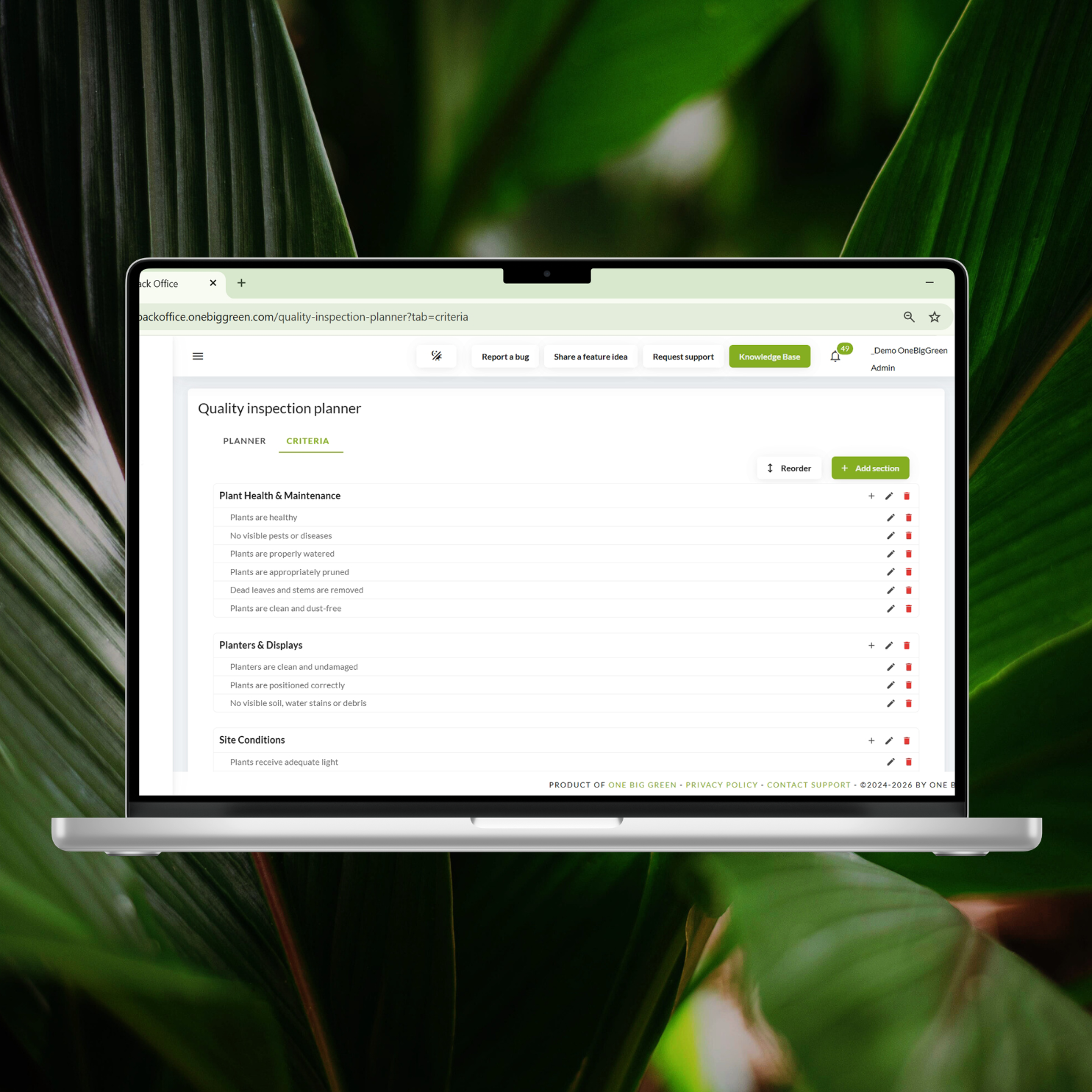
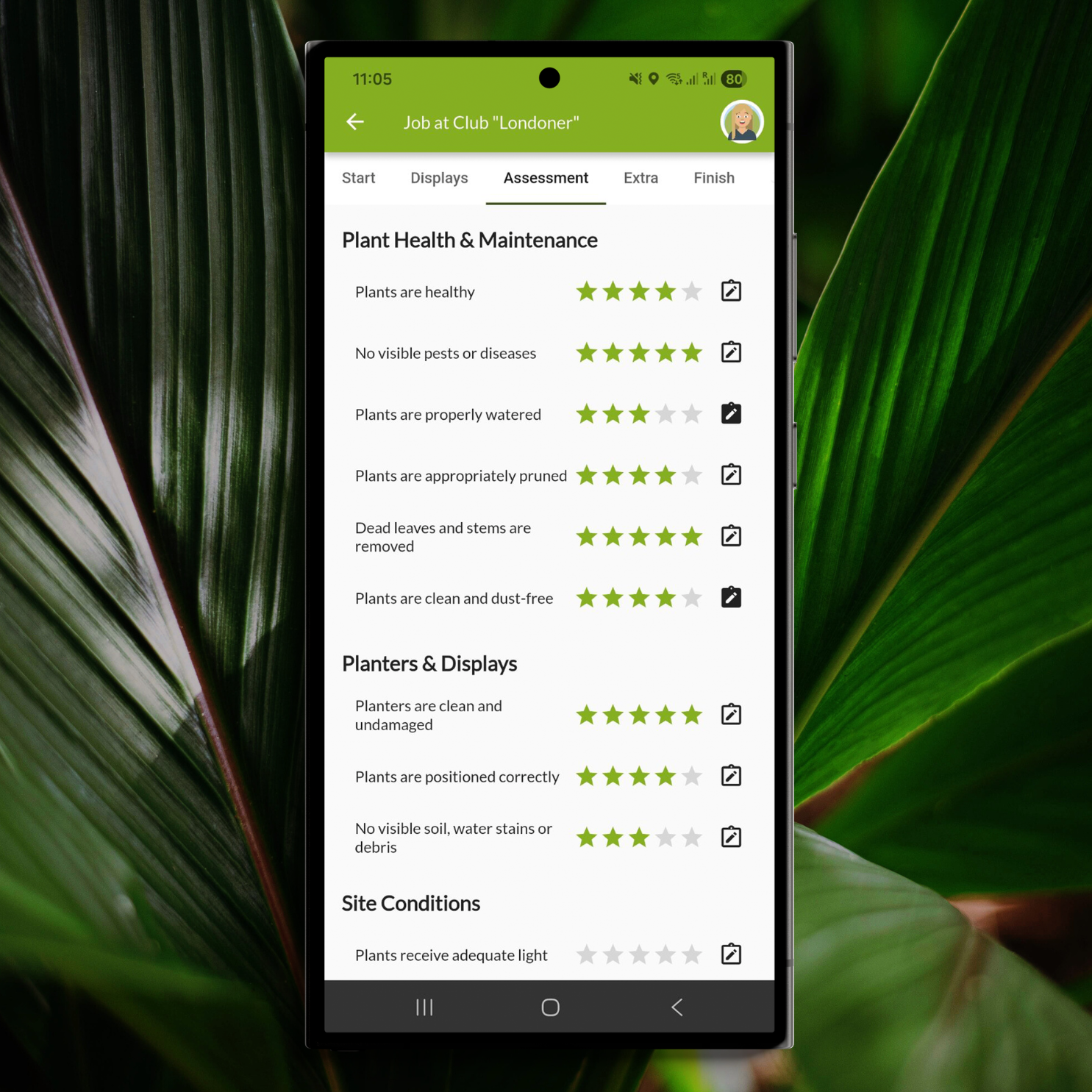
During an inspection, each criterion can be scored from 1 to 5 or left unscored if it is not applicable or does not need to be assessed. Once the inspection is complete, OBG automatically calculates the overall site score as an average of the scored criteria. Unscored criteria are not included in the calculation.
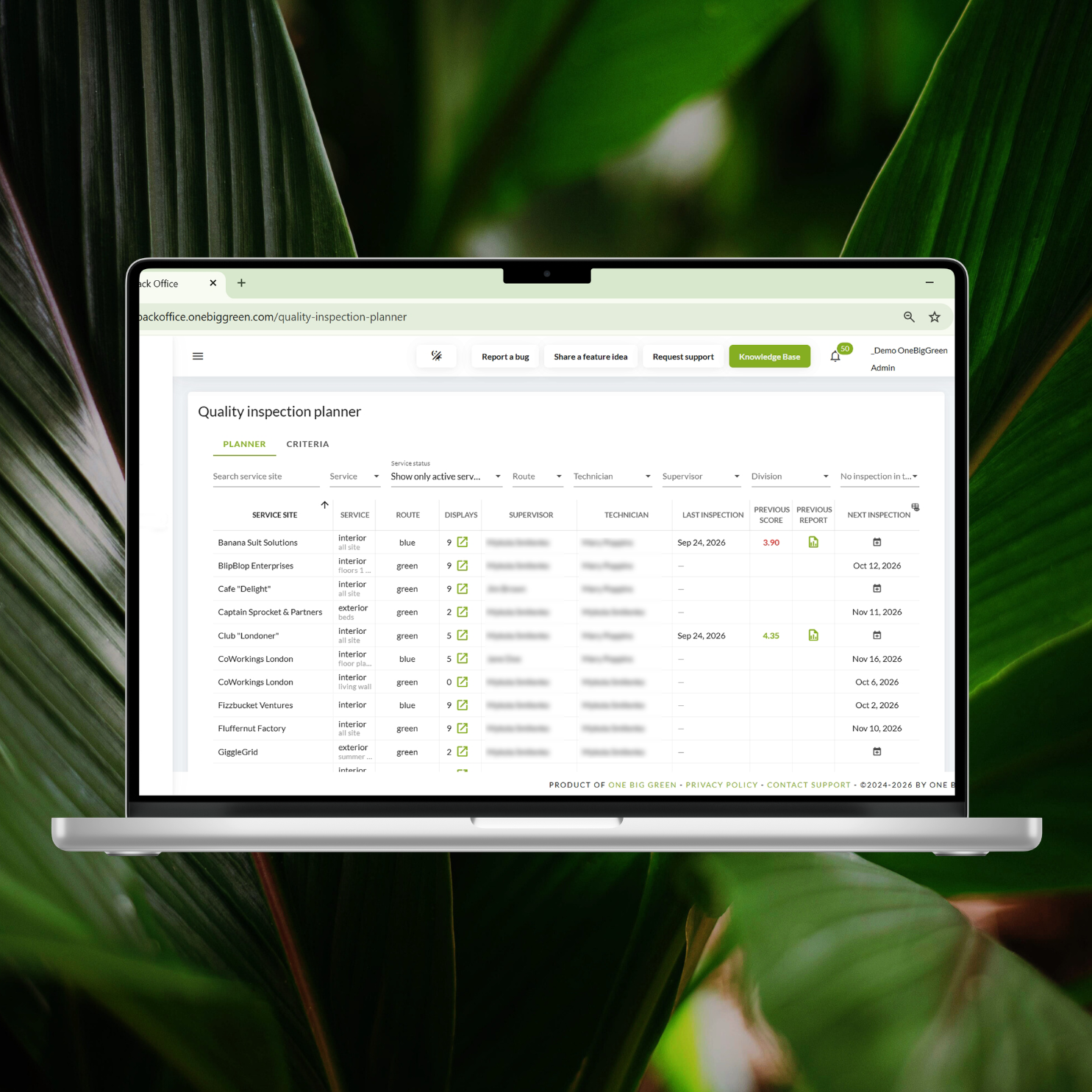
Once your criteria are ready, head over to the Planner. Pick the site you want to inspect and use the handy scheduling icon to jump straight into a prefilled scheduling form. Add an assignee, choose the date and time, and save. The inspection will appear directly in the assignee’s schedule.
What does a quality inspection look like in the app?
If you’ve ever completed a service visit in OBG, the inspection workflow will feel very familiar.
Start tab gives the assignee the general instructions, an overview of open extras, and the button to begin.
Regular tab lets them assess the health of each display, add display-specific notes, trigger a replacement, or update the display photo. Importantly, the previous score is not shown, so the assessment remains objective.
The new Criteria tab is where the assignee scores the entire site against the criteria you defined in the Back office. Notes can be added to explain individual scores.
Extras tab gives access to issues, assignments, and replacements related to the site.
Finish provides a summary of everything recorded before the inspection is submitted.
All completed inspections are then available in Reports > Quality inspection reports in the Back office, giving you a complete digital archive of your quality inspections and a clear trail of how consistently your teams are delivering great service.
How can this help in daily work?
No more spreadsheets, paper checklists, or trying to remember which accounts were inspected last month. You can schedule inspections alongside your regular work, give technicians a consistent assessment framework, and keep all inspection results, notes, photos, and follow-up actions in one place. Over time, you also get a much clearer picture of where your service quality is strong and where a little attention is needed.
Opening hours are now part of scheduling
As we prepare OBG for the new routing model, one of the first things we needed to do was connect service site opening hours with scheduled visit times.
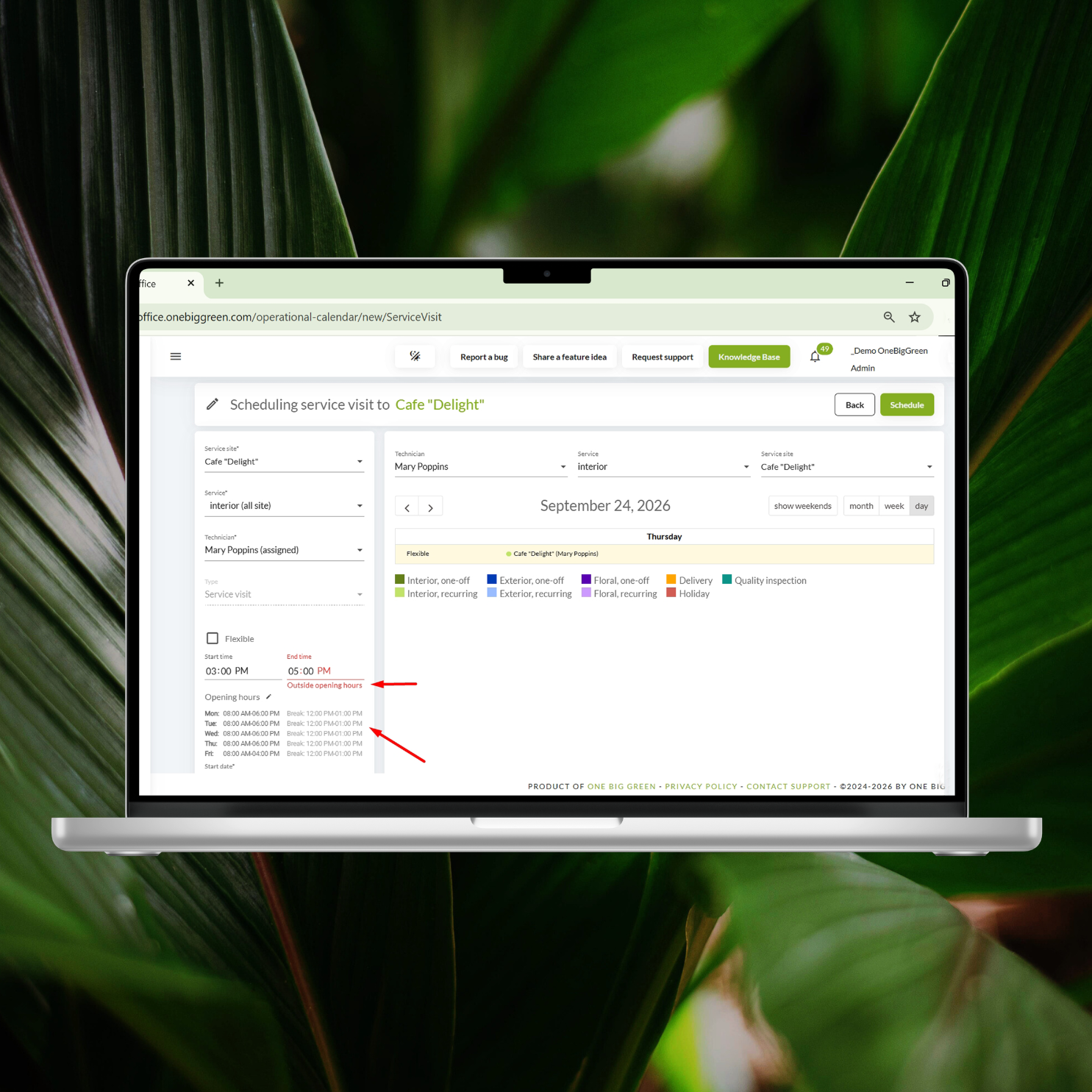
This helps prevent a very annoying situation: scheduling a visit for 12:30, only to discover that the customer closes for lunch at 12:00.
How does it work?
Start in Account Settings and define the standard working hours and break times that are common in your region.
Then use Apply to all service sites to add these opening hours to all your sites at once. Much faster than entering them manually for every account.
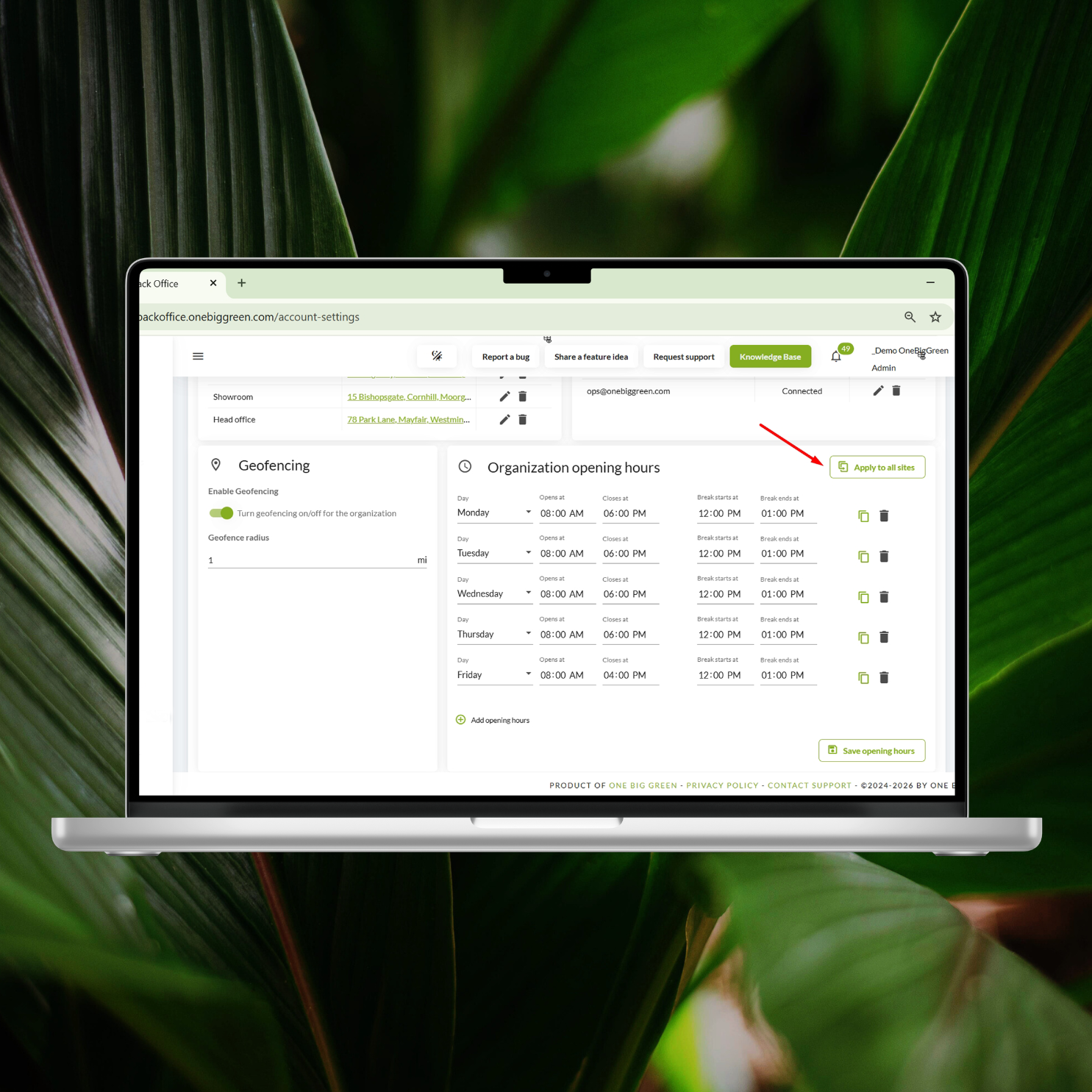
If a particular site has different hours, you can adjust them individually from the Visits tab of that service site.
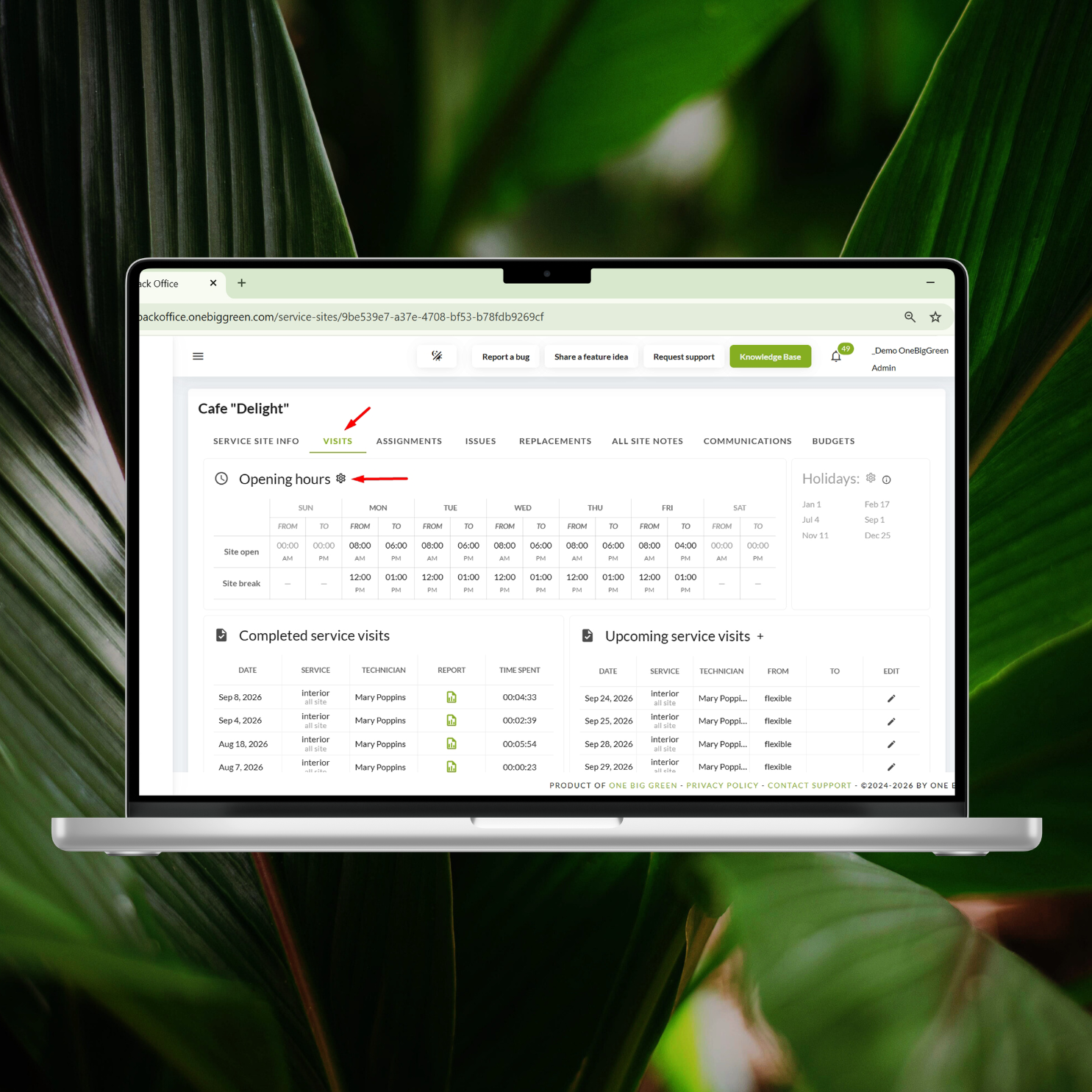
OBG will also flag existing visits that fall outside the opening hours with a warning icon in the service site list. You can then edit the visit time using a handy shortcut or dismiss the warning if the visit is intentionally scheduled outside the standard hours.
For all new service visits, OBG will check the time you enter when scheduling a visit against the site’s opening hours and show those hours directly in the scheduling form.
And yes, we made one deliberate exception: holiday services are not restricted by opening hours. We all know too well what the Christmas season looks like. When you’re putting up holiday displays at 10 PM on a Sunday, the usual opening hours rules are probably the least of your concerns.
How can this help in daily work?
It prevents scheduling mistakes before they happen. Your office team gets an immediate warning when a visit doesn’t fit the customer’s availability, while technicians spend less time arriving at closed doors or trying to coordinate access after the fact.
More flexibility in service scheduling and visit reporting
We’ve made several improvements to service visits that should be particularly useful for companies handling more complex services.
Request photos and supporting documents
When scheduling a service visit, whether recurring or one-off, you can now request a photo or attach supporting documents directly below the service visit instructions.
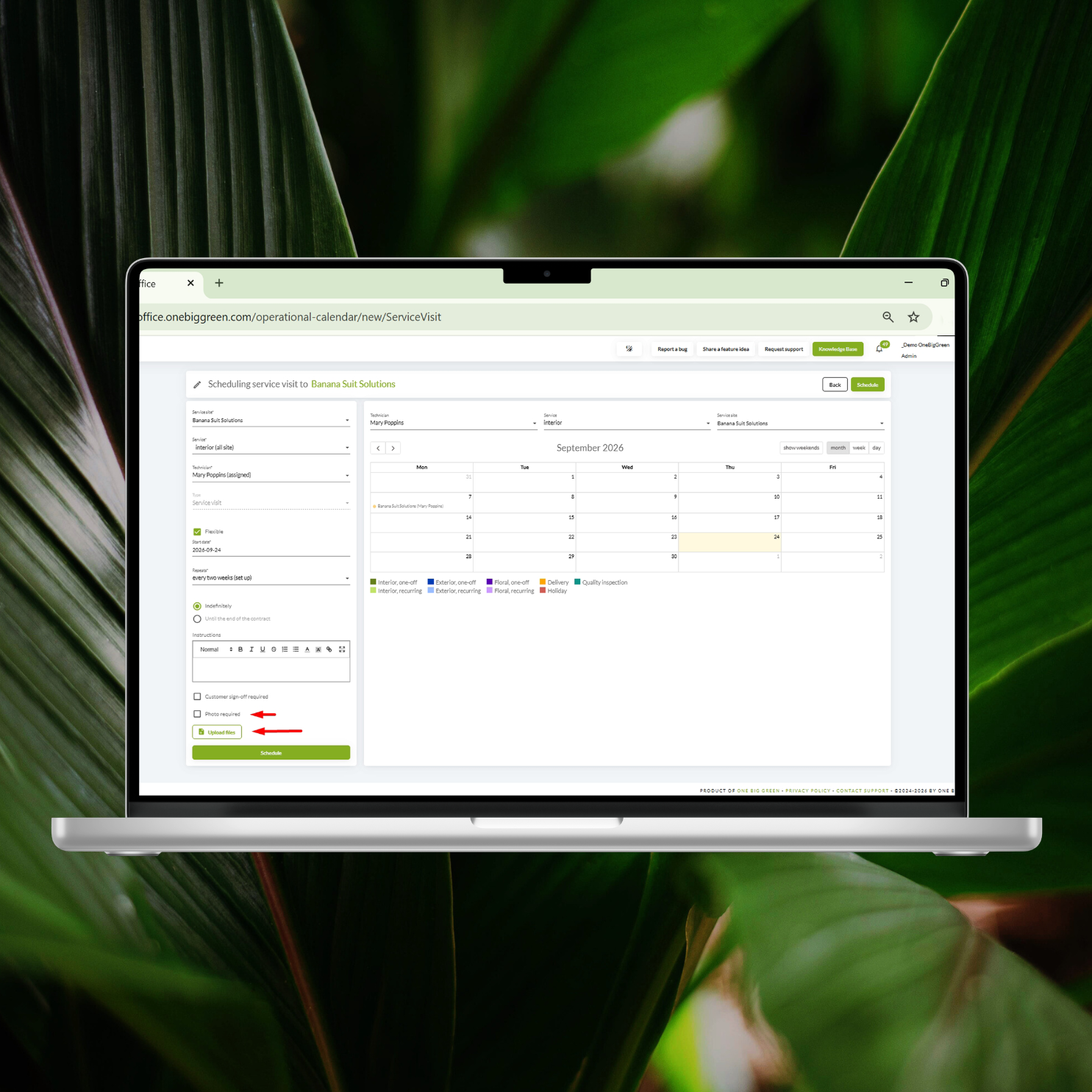
This can be particularly useful for services such as floral work, where you may want to keep a photo of each week’s arrangement in your own records or share it with the customer.
Add a general service summary
Technicians can now add a general visit summary in the Finish tab when completing a service visit.
Unlike field notes, which are connected to individual displays, this summary is about the visit as a whole.
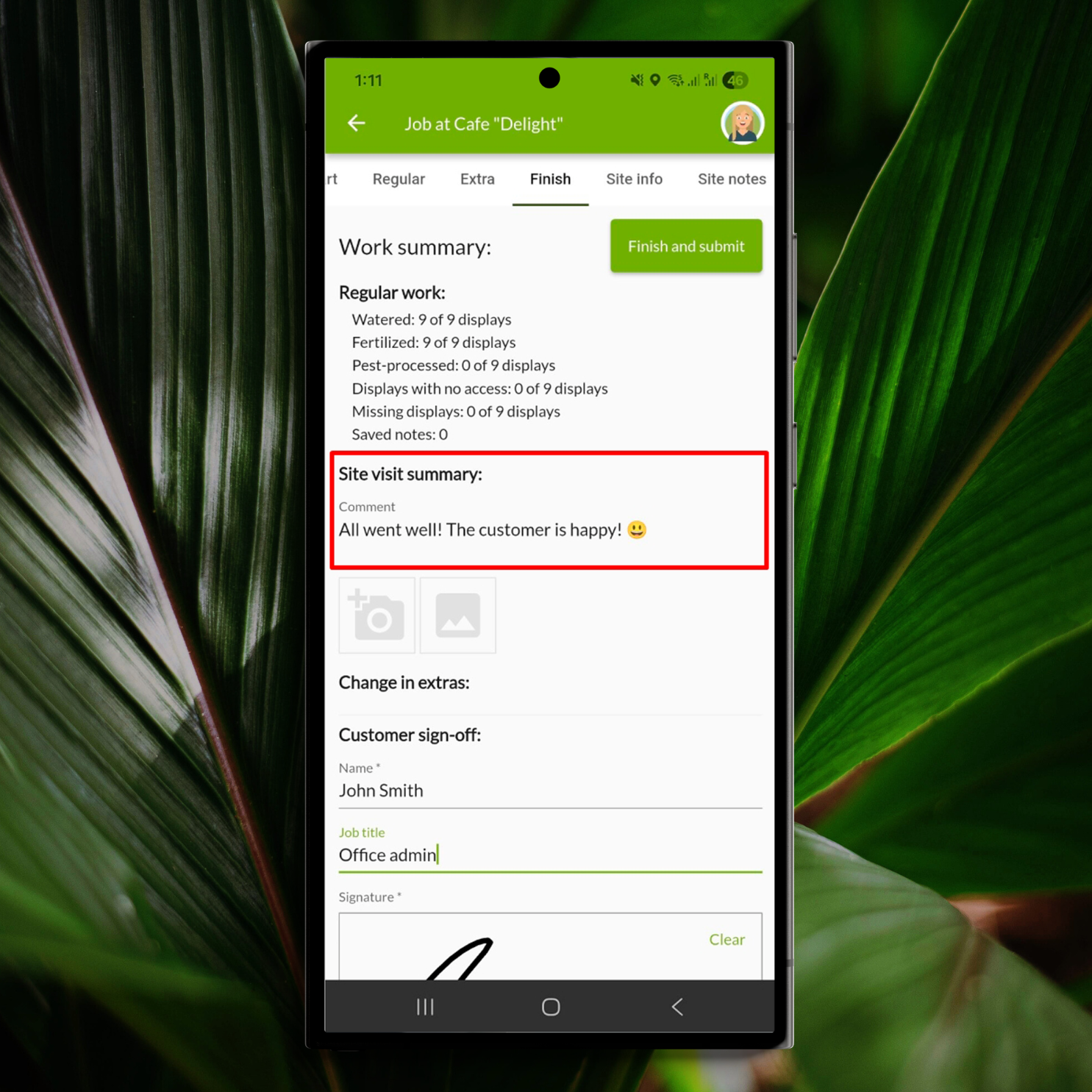
The summary is available in your internal service visit reports and can also be included in externally shared reports if you choose.
How can this help in daily work?
You can build the information you need directly into the scheduling form, so technicians know exactly what to document while also having a place to capture the bigger picture of the visit. Your office team gets a more complete record of what happened, from specific documentation and display-related details to customer discussions and anything else that doesn’t fit elsewhere.
Your branding now goes beyond the PDF
When sending externally shared service visit reports, your branding choices now apply not only to the PDF itself, but also to the cover letter and the email text that accompanies it.
How can this help in daily work?
Your customer communication looks more consistent from start to finish, without your team having to manually customize every report email.
Jump straight into upcoming activities
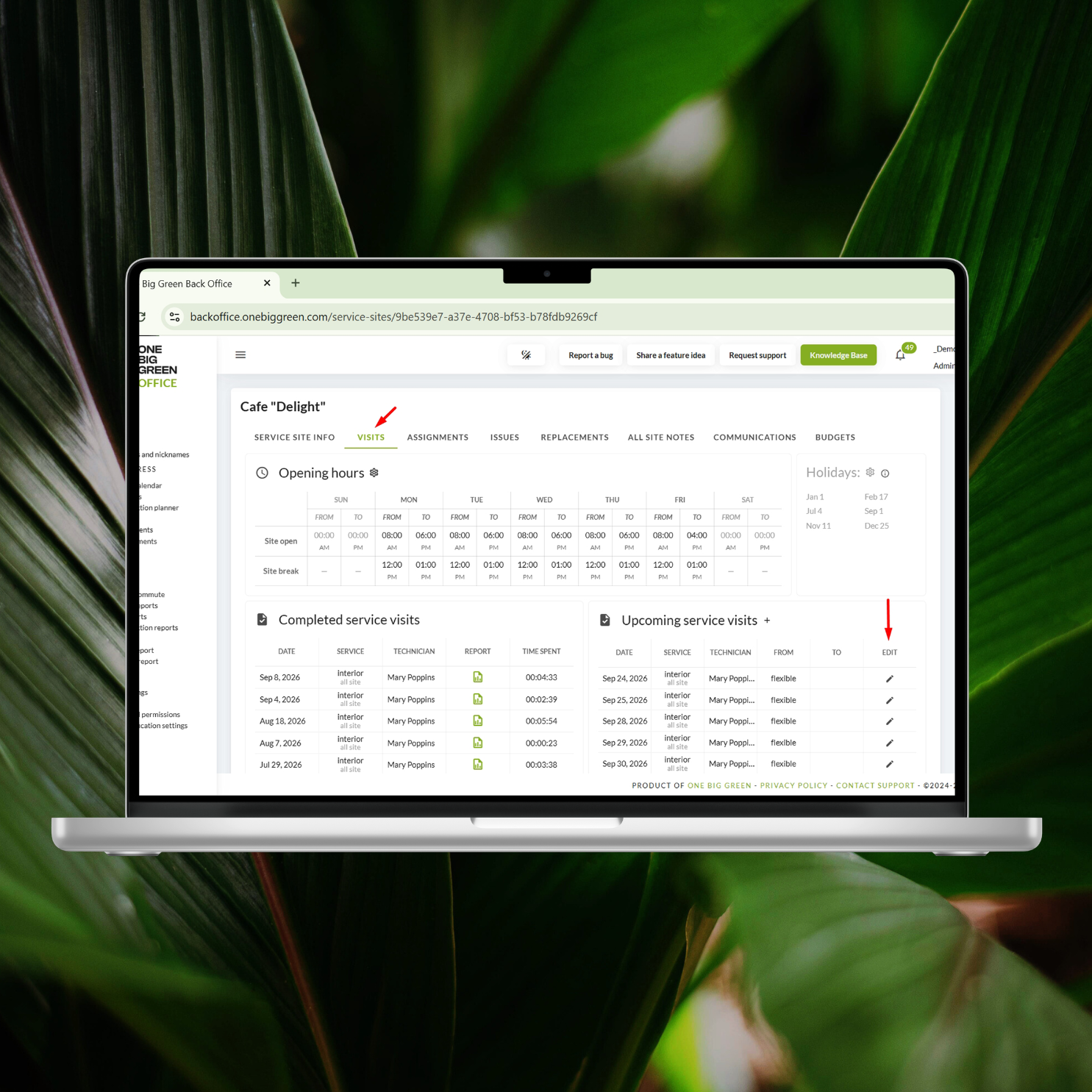
We also made a small but very handy improvement to the Visits tab on the service site card.
You can now click the edit icon next to any upcoming activity, whether it’s a service visit or delivery, and jump directly into its editing form.
How can this help in daily work?
Need to add a request, change an instruction, or adjust something on an upcoming visit? One click gets you there. No hunting through the Operational Calendar first.
Routes are now visible in Budgets
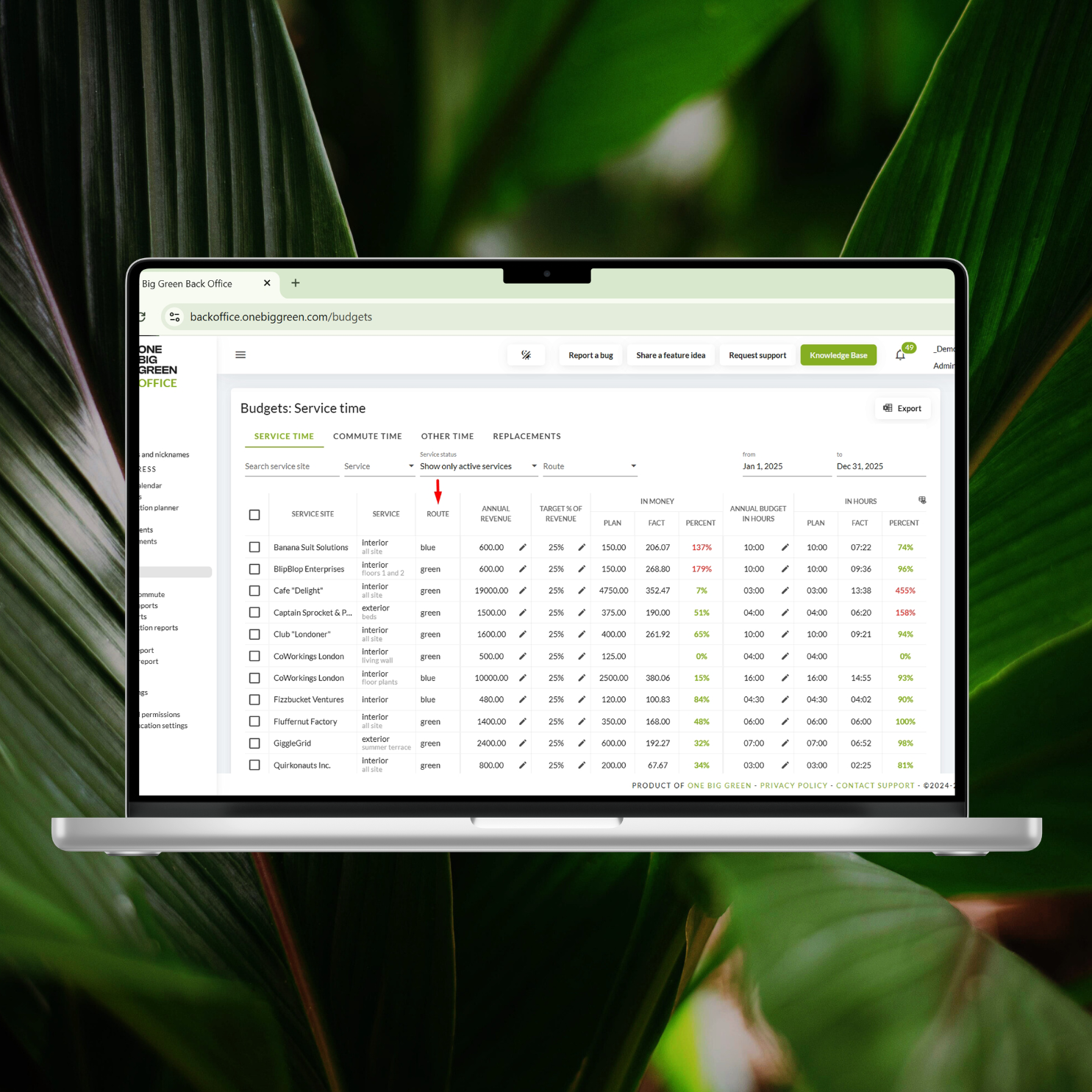
The Budgets section now shows which route each service site belongs to. The same information is also available for Open Replacements.
There’s also a new route filter, so you can quickly narrow the list down to the sites belonging to a particular route.
And if you need to work with the numbers outside OBG, budgets can now be exported to Excel. Select the category and date range, click Export, and you’re ready to go.
How can this help in daily work?
Route-level visibility makes it much easier to understand where your costs and replacement activity are concentrated. And Excel export means you can continue analyzing, sharing, or combining your budget data without manually copying numbers out of OBG.
Automatic creation of issues
Two situations are now automatically turned into issues:
A technician marks a display as missing
A display has had no access twice in a row
The resulting issue points directly to the relevant service site, floor, zone, and display, and is automatically assigned to the supervisor responsible for that site.
How can this help in daily work?
Problems that used to depend on someone remembering to create a follow-up issue are now captured automatically. That means fewer things slipping through the cracks, especially when the same access or missing-display problem keeps happening.
A better way to manage walking order
When adjusting the walking order of displays in the mobile app, you can now filter the list by floor and, where needed, by zone or room, and then define the walking order within each area.
This makes it much easier to arrange displays in the order technicians actually walk through the site.
We’ve also expanded who can edit the walking order. It’s no longer limited to the assigned technicians. Anyone with the appropriate access to the site based on your organization’s user roles and permissions, such as managers or company admins, can now update it.
How can this help in daily work?
Large sites can be painful to navigate when displays are not in a logical order. Now you can organize the walking sequence floor by floor and make sure technicians follow a practical route through the site, even if someone other than the assigned technician needs to maintain it.
More control over user management
We’ve also added a new level of control to User rights and permissions.
You can now define which user roles are allowed to invite new users, activate or deactivate existing users, and delete users.
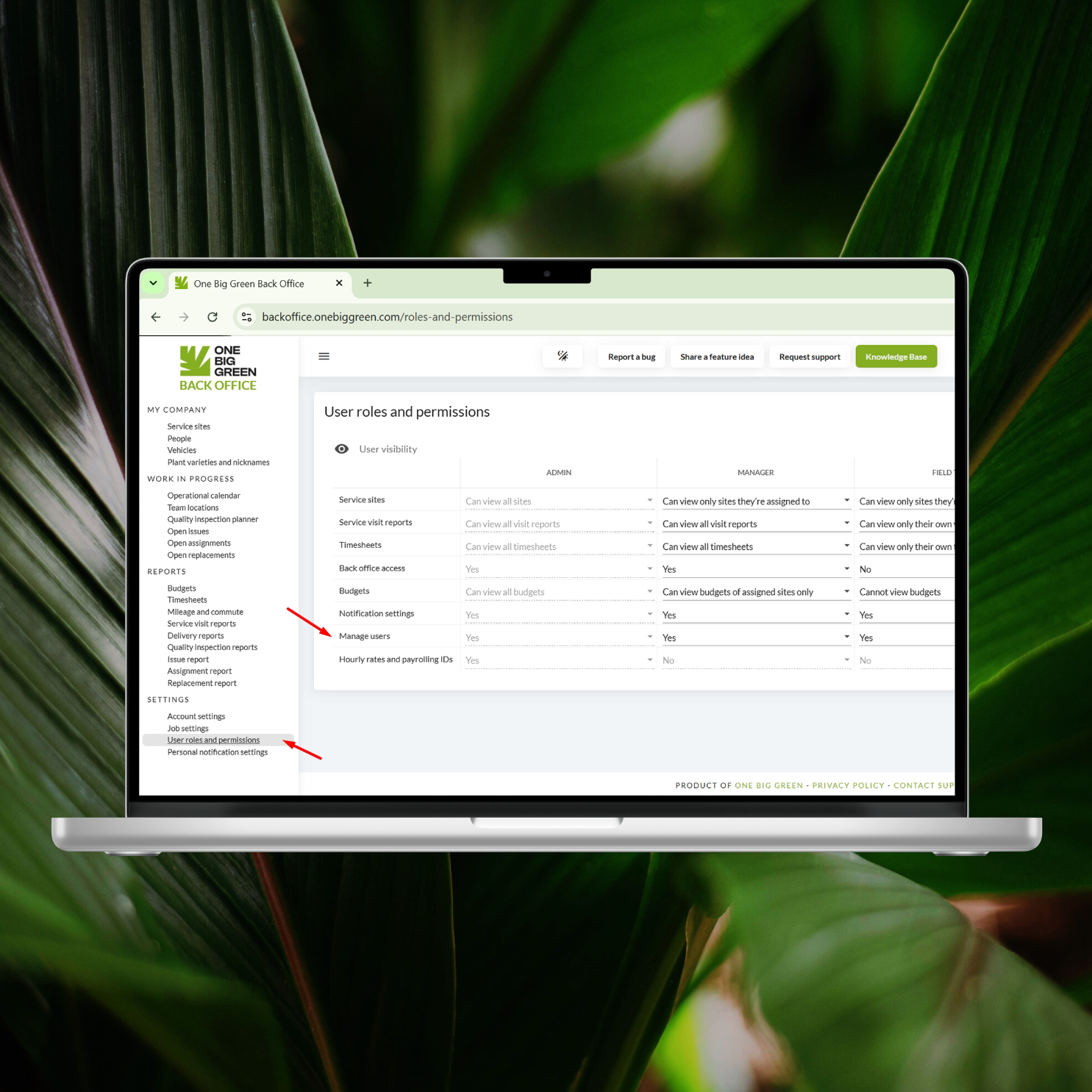
This gives you more flexibility to decide who in your organization should be able to manage access to OBG. For example, you may want managers to be able to invite and deactivate team members, while keeping user deletion restricted to company admins.
How can this help in daily work?
User management can now follow the way your company is actually organized. The right people can handle everyday onboarding and access changes without giving everyone full administrative control, helping you keep user access tidy and secure as your team changes.
Subcontracted accounts are now easier to manage
Are you a subcontractor on some of your accounts? It’s very common in our industry.
Previously, many companies solved this by adding the contractor information directly to the service site name, such as:
Amazing Hotel, sub for Global Plantscapers Inc.
It works, but it also makes your site names unnecessarily long.
You can now use the new Subcontracted for field on the Service site card under Basic info.
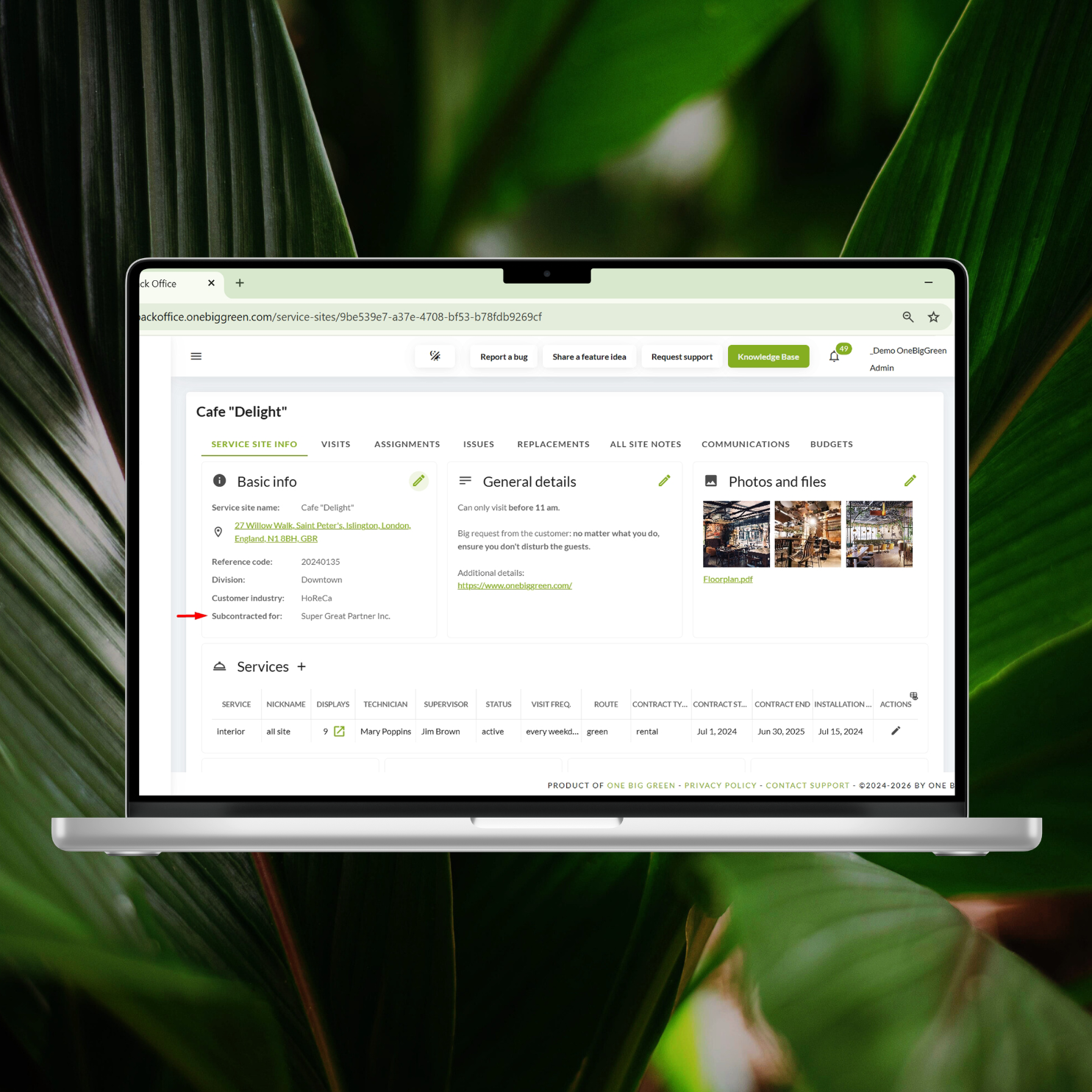
There’s also a new filter in the Service site list, so you can instantly see all your subcontracted accounts. The field is also included in the service site import template.
How can this help in daily work?
You can keep your service site names short and clean while still having the subcontracting relationship clearly recorded and searchable. It also makes reporting and account management much easier when you have a mix of your own and subcontracted customers.
Mass-renaming displays just got easier
You can already use OBG’s export-import functionality to make bulk changes to your field inventory.
Quick recap: need to mass-update your inventory?Just export your inventory, update the relevant fields in the generated Google Sheet, and reimport it while keeping the plant, planter, and display IDs intact. OBG uses those IDs to match your changes to the existing records.
With this update, you can also mass-rename displays using exactly the same process.
How can this help in daily work?
If you need to rename dozens or hundreds of displays, you don’t have to open every display individually. Make the changes in one spreadsheet and let OBG update the existing records for you. Much less clicking, much less patience required.
Onboarding new users is now much simpler
If someone didn’t receive their OBG invitation because of your company email settings (sadly, this happens quite often), you can now generate a direct invitation link and share it with them through another communication channel.
For any outstanding invitation, simply click the new link icon next to it to generate and copy the invitation link.
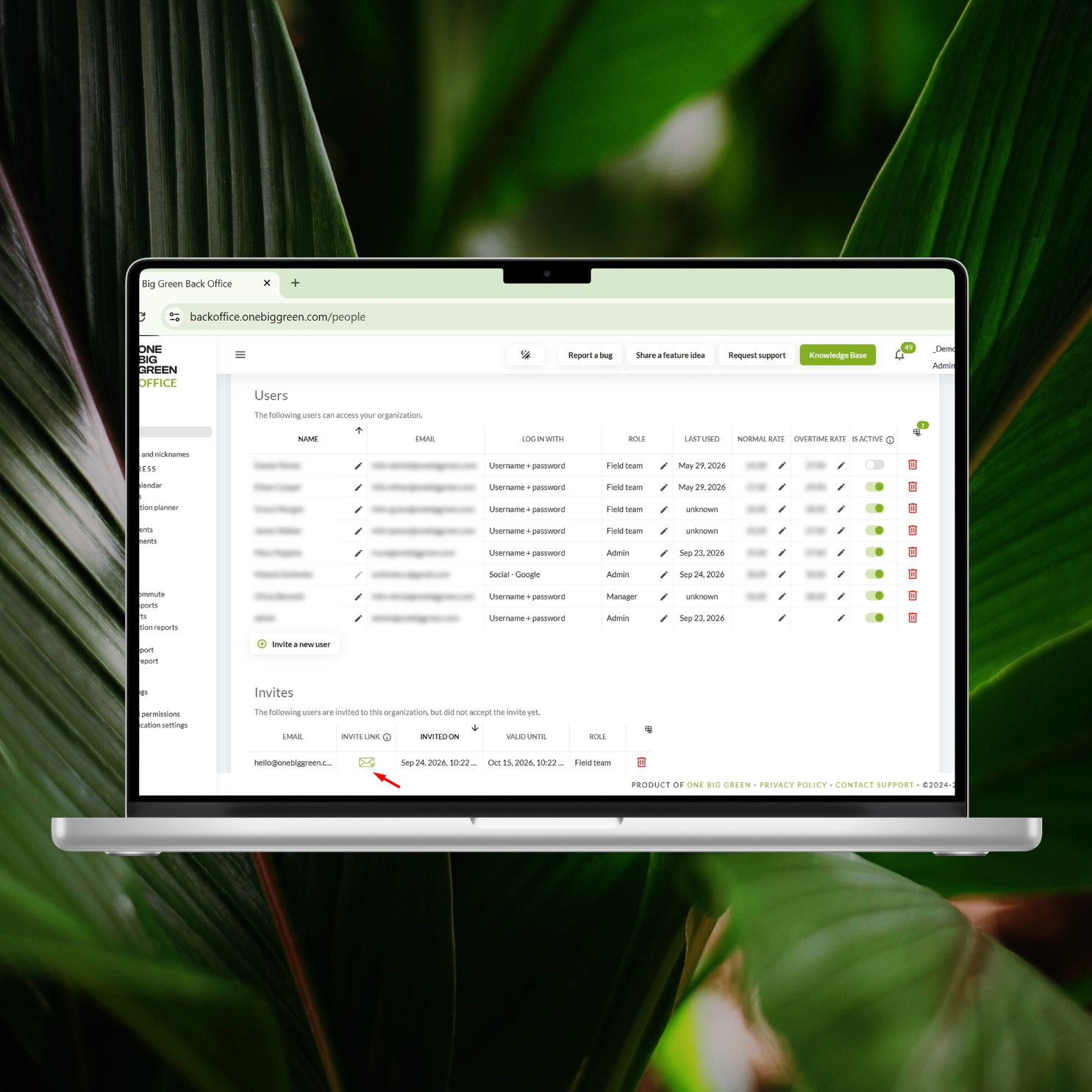
We’ve also removed the verification email with a code from the onboarding workflow, so new users no longer need to wait for or enter a verification code.
Getting a new team member into OBG is now literally a matter of a couple of clicks.
How can this help in daily work?
No more waiting for invitation emails that mysteriously disappear into the corporate email black hole. Your team can get new employees onboarded quickly, even when their company email setup is being uncooperative.
You can now edit OBG user names
Did someone enter only their first name when accepting their invitation? Typed everything in lowercase? Or are you using a shared account such as service@company.com and the person using it has changed?
You can now simply edit the user’s name in OBG without affecting their historical records.
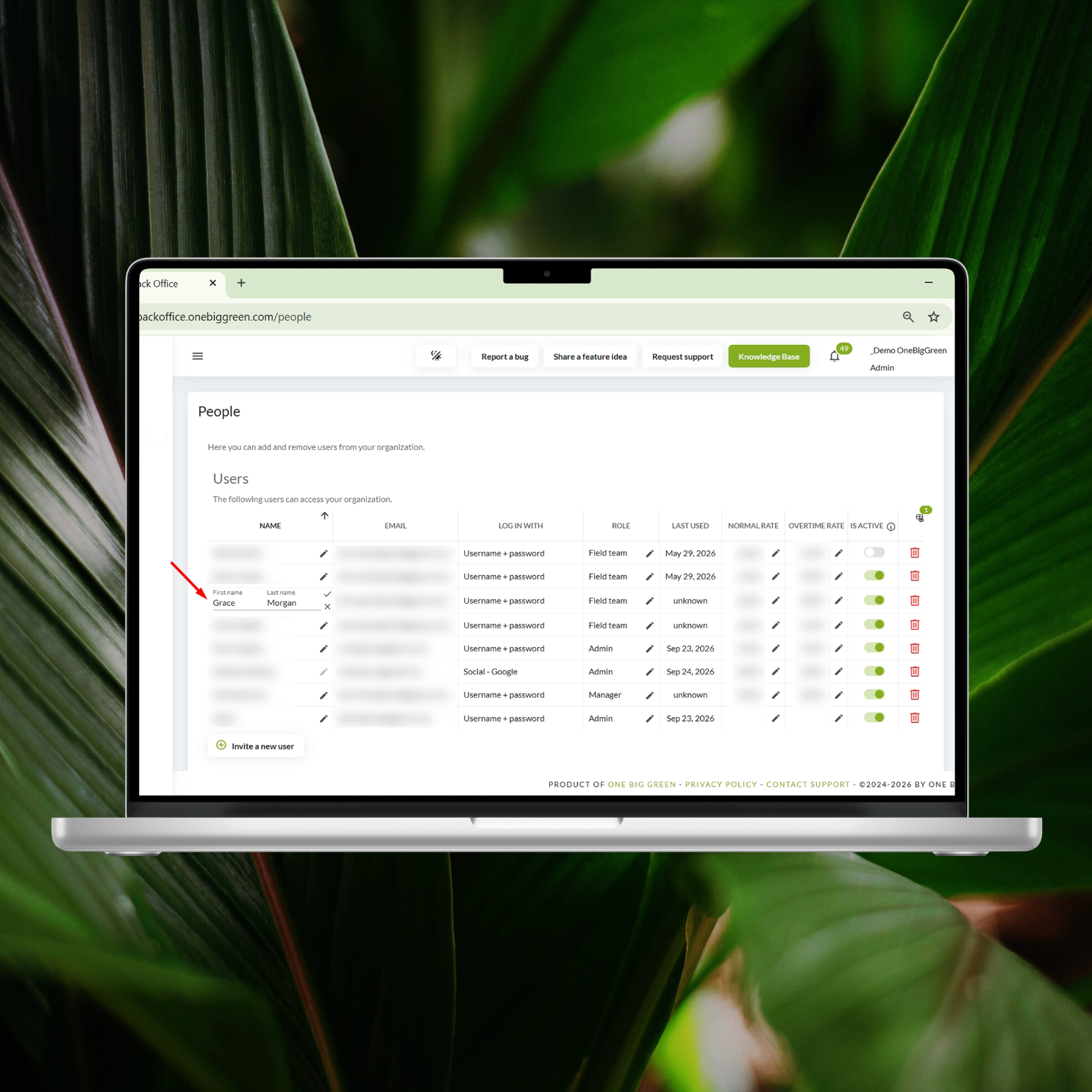
There are two things worth knowing.
First, closed items such as timesheets or completed replacements remain under the name that was recorded when they were closed. Open items, such as scheduled visits and open extras, will use the new name.
In the user list, you’ll see the current name only. When you filter by that user, however, OBG will still find all their records, including those created under their previous name.
Second, users who sign in with Google or Apple cannot have their name permanently changed locally in OBG, and this is outside our control. If you change it in OBG, their Google or Apple account name will overwrite your OBG name again the next time they log in.
How can this help in daily work?
Your user list can finally reflect reality without messing up your historical data. You can correct messy names, update shared accounts, or fix a typo without losing the connection to everything that person has done in OBG.
And we’re listening for what’s next
Every OBG feature starts with a problem worth solving.
Sometimes it comes from our own observations, sometimes from seeing how our customers use the system, and very often it comes directly from you.
So please keep the ideas coming. Tell us what feels unnecessarily complicated, what still takes too many clicks, what you’re doing outside OBG because the system doesn’t quite support it yet, or simply what would make your everyday work a little easier.
Have an idea? We’d love to hear it.
After all, OBG is built for plant service companies, and we believe the best way to keep making it better is to build it together with the people who actually run them.


